හෙටත් අද වගේමද ?
Hetat Ada Wagemada ?

ශ්රීලංකාවේ ඓතිහාසික මාතර පුරවරයේ ඉතා අලංකාර ප්රදේශයක් මුල්කොට ගනිමින්, ඉතා සංවේදී වූ කථා වස්තුවක් පාදක කොටගත් අපේ කාළයේ අපේම කථාවක්.... පවුලේ කාටත් නැරඹිය හැකි සෑම සියළු දෙනාටම ආදර්ශයක් සපයමින් නිශ්පාදනය කරන ලද, අන්තර්ජාලය මගින් නැරඹිය හැකි එකම ඒකාංගික ටෙලි වෘතාන්තය. හෙටත් අද වගේමද ? ලගදීම ඔබ වෙත....
Trail Download.
Download High Quality Video
http://www.thevideostreet.com/new_item_n/Hetath_ada_wagemada_Trailer.WMV
Mirror 1
http://www.matara.comli.com/Hetath_ada_wagemada_Trailer.wmv
Mirror 2
http://www.gz4.info/video_songs/Hetath_ada_wagemada_Trailer.zip
http://www.thevideostreet.com/new_item_n/Hetath_ada_wagemada_Trailer.WMV
Mirror 1
http://www.matara.comli.com/Hetath_ada_wagemada_Trailer.wmv
Mirror 2
http://www.gz4.info/video_songs/Hetath_ada_wagemada_Trailer.zip
Watch Youtube
Formore Details.. Visit www.variousonline.com
----------------------------------------------------------------------------
Download Sinhala Unicode

මෙහි පැමිණෙන ඔබ සාදරයෙන් පිළි ගනී! මෙම වෙබ් පිටුව තුලින් ශ්රී ලංකාවේ භාවිතා වන ප්රධාන දේශීය භාෂා වන සිංහල හා දමිළ භාෂාවන් පරිගණක සඳහා භාවිතා කළ හැකි අයුරු පිළිබඳ? තොරතුරු, උපදෙස් මෙන්ම ඒ සඳහා අවශ්ය වන මෘදුකාංග ද ඔබට සපයයි.

Click Here to Download Unicode For Windows Xp

Click Here to Download Unicode For Windows Vista


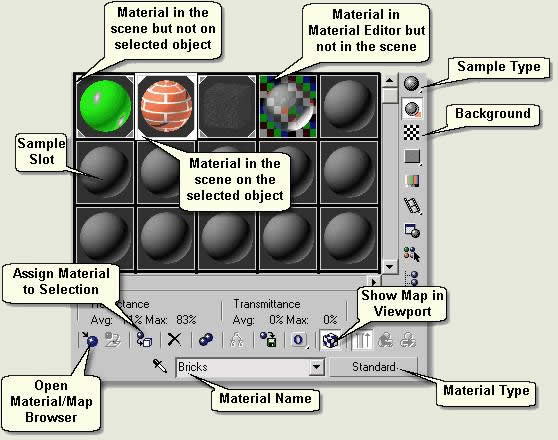
 Select a sample slot by left clicking over it. When the sample slot is current (ie you can edit the material) it shows a white border. Change the Sphere to a Box by clicking the Sample Type Button flyout and choosing the Box Type
 Toggle this button on or off to display a chequered background. This is useful to view how transparent a material is (a glass material for example)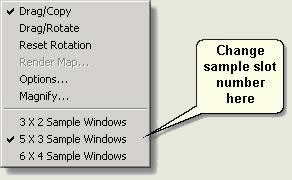
 Press Get Material. This opens the Material/Map Browser. This is where you manage material and map resources in and out of the scene
 Select the Box and in the Material Editor select the Brick material sample slot. Press Assign Material to Selection. Notice in the viewport the box is assigned the brick material
 Press Show Map in Viewport. This shows the brick map which is part of the Brick material in the viewport or not. Toggle this on and off and notice the bricks on the box are shown or not shown
 Press Put to Library. This opens a dialog box for saving the current material to a material library. Close the box as this is explained later
 Go to Parent is used when you are at the 'Map' level (accessed through pressing one of the Map buttons - explained later) to return to the next level up in the material. This is greyed out if no Maps are used in the material
 Select an empty sample slot and press Pick Material from Object. This is a quick way to select a material in the scene for editing purposes
 Press this button (in MAX) or the button displaying ‘Architectural’ (in VIZ) to open the Material/Map Browser and to pick from a selection of Material Types. The most common for landscape use are Standard (most materials including none mapped and mapped materials - procedural maps and image maps), Double Sided (contains two standard materials for the front and back of a road sign for example) and Multi > Sub-Object (for use on any objects that contain a number of elements needing different materials assigned to each element - a seat with painted legs and wood slats for example)